Hey everyone, this post is long due. I’ve actually got Day 4 coming right after this one 😅
I have been on and off feeling well this week between that and regular work I’ve been a tad busy. BUT that’s no excuse.
If we are to get anywhere in life and with our goals WE MUST persevere. IT IS A MUST. There’s nothing you can’t do. No excuses.
So that said … let’s get back on track.
Day 3 Objectives:
- Impacket Install
- Deleting Old Impacket
- FTP Install
- Setting Up A Web Server
Impacket Install
What is impacket?
Impacket is a collection of Python classes for working with network protocols. Impacket is focused on providing low-level programmatic access time packets and for some protocols the protocol itself. Packets can be constructed from scratch, as well as parsed from raw data, and the object oriented API makes it simple to work with deep hierarchies of protocols.
– github.com/SecureAuthCorp/Impacket

Impacket Purge
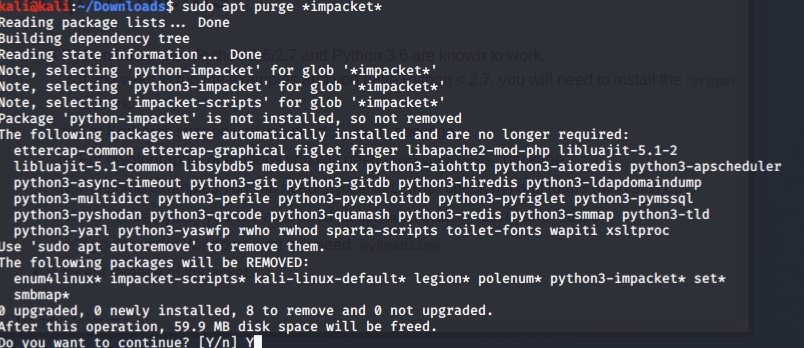
Next up, we deleted the old Impacket with “purge” which not only removes the package but also all configurations.
sudo apt purge *impacket*
FTP Install
Next we installed ftp which is the file transfer protocol (again – beneficial from now on to know a little bit about networking).
sudo apt install ftp

Setting Up A Web Server
Finally, we were ready to get started with Apache.
Apache is a free open-source cross-platform web server software.
-Apache
service apache2 start
First however we made a proof of concept which is really just a fancy way of saying “This is how I know it works.” It’s basically a fancy word for let’s experiment and show that this is how it works.
To do so, we opened up our web browser … because I was in Kali Linux, I used Firefox but any browser will do.
You’re going to need your IP for this so be sure to ifconfig and snag that before you begin.
Pop that into your web browser address bar and hit enter.
You should get a page that looks somewhat like this (I say somewhat because different browsers look different)

Now, run the earlier command service apache2 start and you should get this page:
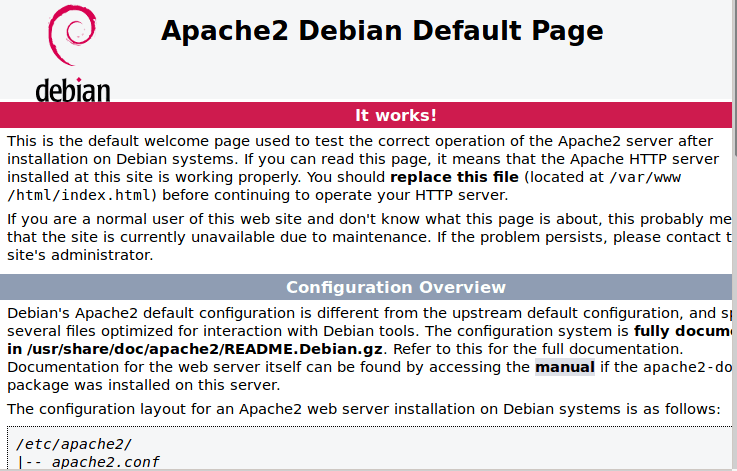
BOOM. Web server created. Other services you may consider running at this time would be
ssh and postgresql which are started the same way we started Apache.
Note…once you turn these computer off … services are done … so you’d have to do this again…
How do we keep these services then?
systemctl
systemctl is used to examine and control the state of “systemd” which is the system and service manager for Linux (like an operating system). This makes it useful for starting and stopping services as well as keeping services on start up.
to save our services: systemctl enable (service)
To Close:
We are slowly diving deeper & deeper by the day. Tomorrow we begin working on building a super simple ping sweeper.
Thanks for taking a byte with me today!
Jazzie.
Links
 take a byte